The AI UGC Creator System.

Build one AI creator and turn them into a finished, phone-style ad. Start with the result, then see how the shot and edit come together.

See the walkthrough
AI-generated demo · Scripted, not a customer reviewMedicube · 0:27

Watch for this

Reveal the product. Keep the setup.

The creator gestures toward her cheek early. At the cut into clip 3, the jar is already beside her face. The cut keeps the same tight selfie framing instead of switching to a separate product close-up.

Original starting frames

Two starting frames. Two jobs.

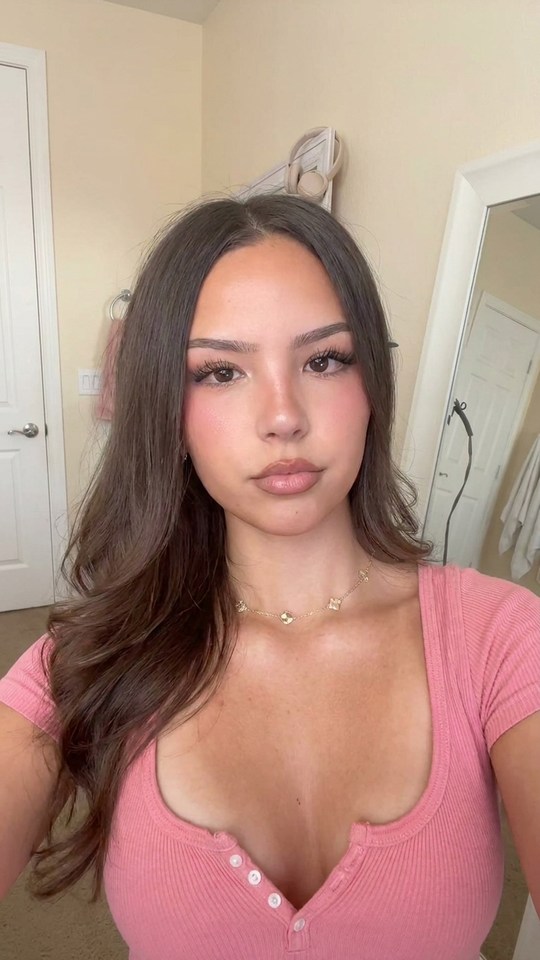
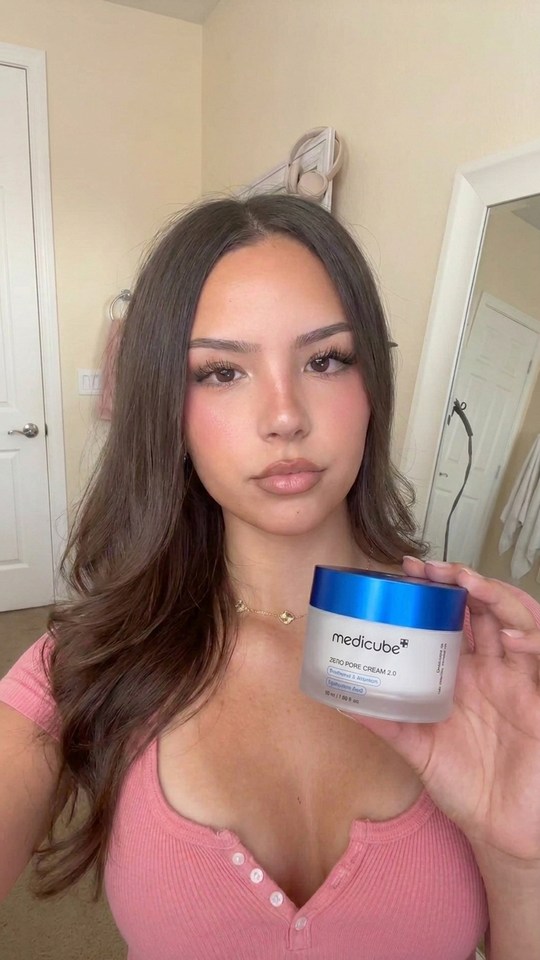
Same creator, room, and framing. One frame starts a talking shot. The other puts the product in view from the start.

Creator in a pink top facing the phone camera without the product
A / Talking shotKeep the focus on the creator and the line.
Same creator holding a blue-lidded Medicube jar close to the camera
B / Product shotStart with the jar already visible.

The workflow

From selfie to final cut.

01 · Still images

Build the starting frames.

Frame A
A vertical selfie in everyday light, with no product in frame. Use a distinct character or a photo you have permission to use.
Frame B
In Nano Banana Pro, use Frame A and a product photo to make a matching still with the jar in hand.

Before animating, compare the face, framing, and light. Check the jar against the product photo.

Open both starting-frame prompts

Frame A · Starter prompt for your own build
Create a 9:16 front-camera selfie of a distinct adult creator [description] in a lived-in room. Use casual framing, everyday lighting, subtle makeup, and natural skin texture. Keep the hands relaxed and the product out of frame. No on-screen text or interface.

Frame B · Original product-frame prompt make her hold the uploaded product and show it to the camera. CRITICAL: Do not change the color grading and the lightning of the image.

Optional: For more angles, add a side profile, eye close-up, and feature grid. Keep only references that look like the same person.
02 · Animation

Bring both frames to life.

Google Flow settings: Omni 1.1 Flash · 9:16 · 720p · 10 seconds

Frame A: Talking shot

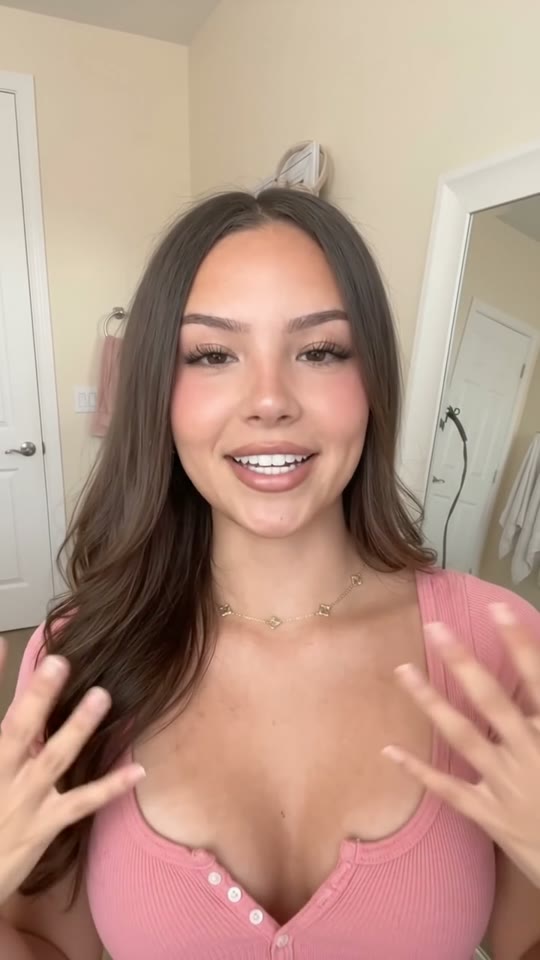
Keep the jar out of frame. Give the creator one spoken line and one small gesture with the free hand.

Open the reusable talking-shot prompt
Start from the supplied frame. Match the framing and subject position. Keep the product out of frame. The creator looks into the lens and says exactly: “[Insert a short scripted line.]” Make it sound like a casual phone recording. Leave a short beat before and after the line so no words get clipped. One hand holds the phone throughout. Only the free hand gestures. Keep the movement small and natural, with slight handheld shake. One continuous take. No zoom, cuts, music, or distracting background noise.
The creator raises both hands in a shot framed like a handheld selfie
Handheld continuity checkOnly the free hand should gesture. If both hands need to move, establish a propped phone first.

Frame B: Product shot

Start with the jar already in hand. Keep the label facing the camera and check the jar shape and grip before cutting.

Open the adapted product-shot prompt
Start from the supplied frame. Keep the same framing, lighting, and subject position. One hand holds the phone; the other holds the jar beside the creator’s face. Keep the jar in frame and the label facing the camera. Use small movements so the jar doesn’t turn away or cover her face. The creator looks into the lens and says exactly: “[Insert one short scripted line.]” Leave a short beat before and after the line. One continuous take with slight handheld motion. No zoom, cuts, or music.

Both prompts are adaptations. Read each line aloud before generating and shorten it if it sounds rushed.

Read the notes from the original run
Frame A used Frames mode with two outputs. Frame B reused a “no objects in frame” instruction, which contradicted the product input. The original 35-word line left little room for pauses at 10 seconds.

03 · CapCut

Cut three clips into one ad.

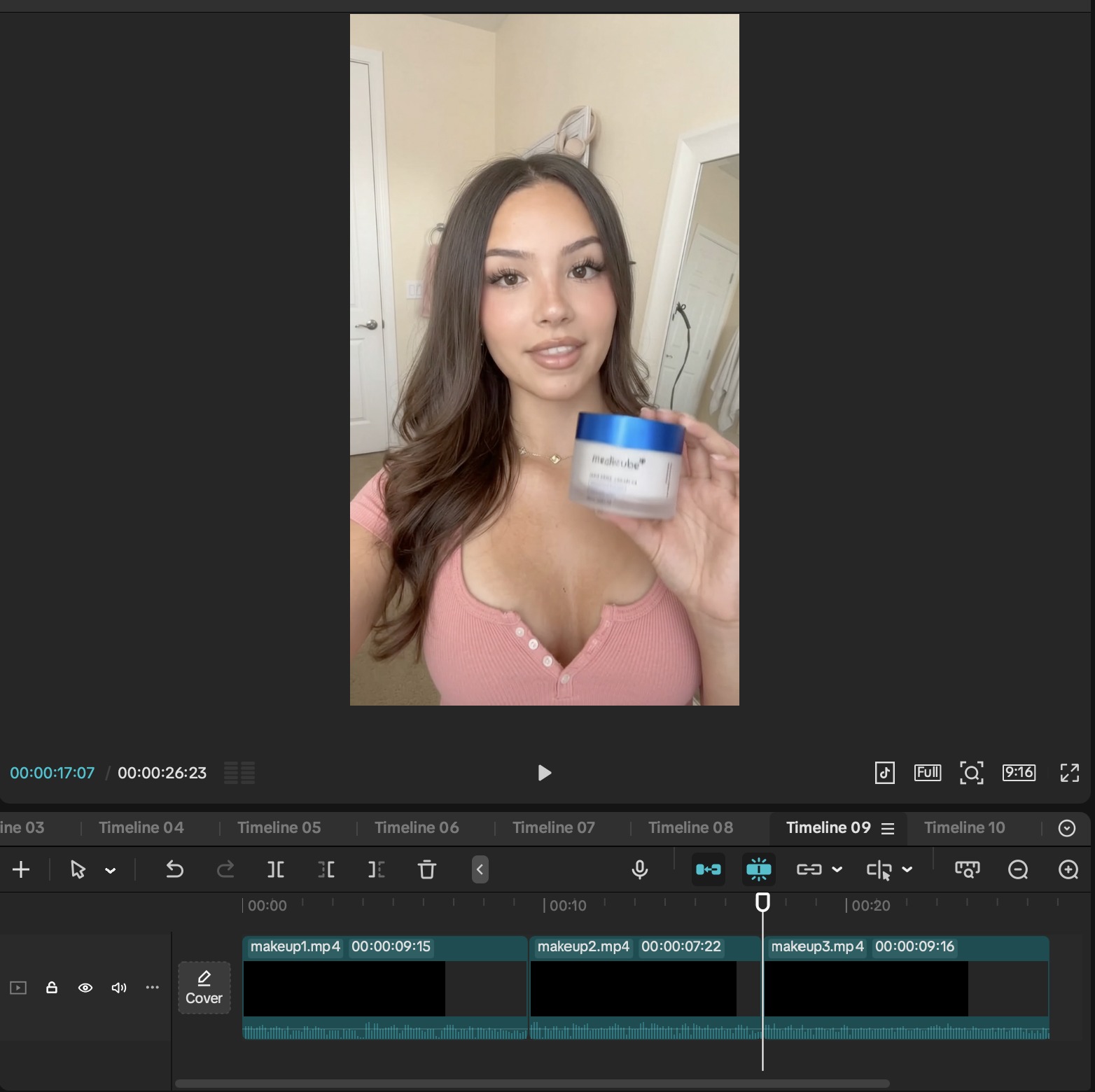
CapCut timeline with three adjacent clips and a playhead at the start of clip 3, when the Medicube jar is visible
CapCut timeline. The jar appears at 00:00:17:07. Select the image to open it full size.
  1. Open on the creator. Keep the jar out of the first shot.
  2. Continue the thought. Keep the setup consistent across the cut.
  3. Reveal the jar at 0:17. Cut to it already beside her face.

Export: Export a vertical 9:16 MP4 and play the finished file once.

Open the final playback checklist

First, watch muted. Check the face position, framing, jar shape, and label across cuts.

Then listen. Check that no words are clipped, the volume stays even, and no pause stalls the reveal.